 11

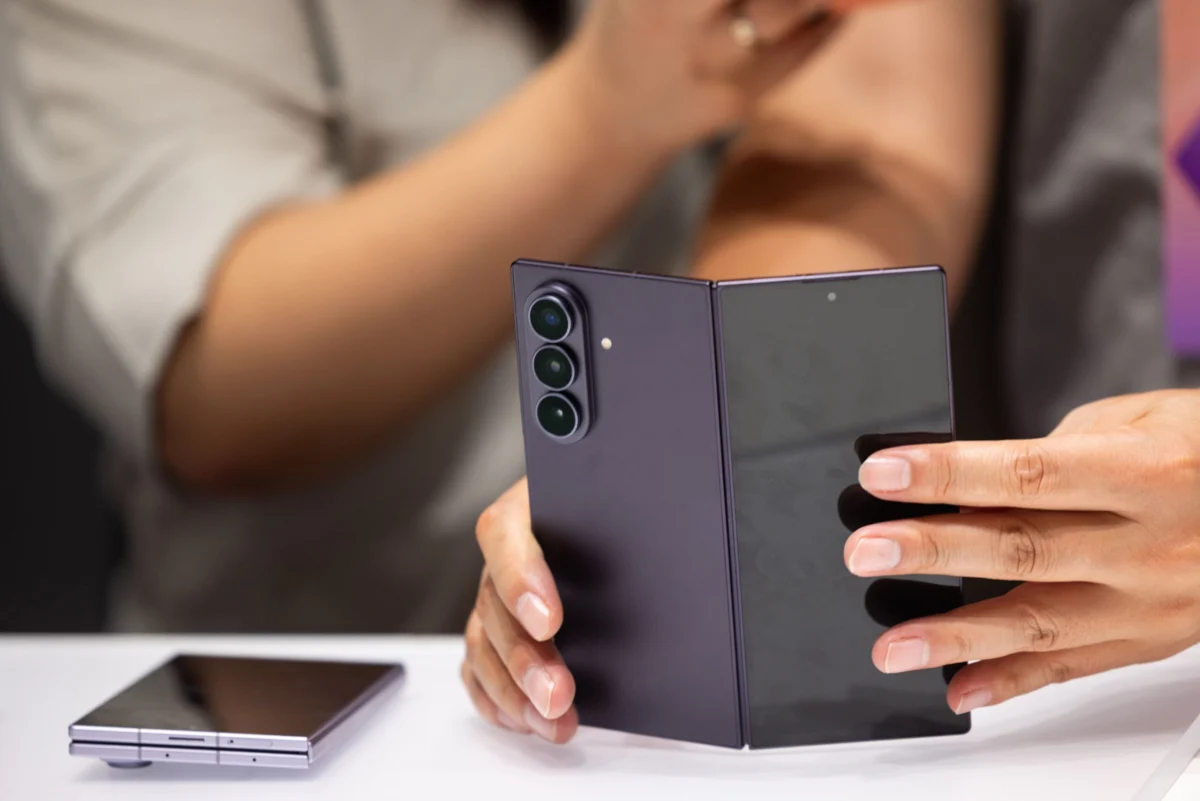
For individuals navigating the diverse landscape of mobile technology, the choice between an Android phone and an iPhone often hinges on a blend of inherent functionalities and manufacturer-specific innovations. While Apple’s iPhone ecosystem offers a tightly integrated experience, Android’s open nature allows various phone makers to imbue their devices with proprietary enhancements that significantly alter the user interface and overall utility. Google’s Pixel phones, for instance, distinguish themselves with features like the "Now Playing" widget, an instant music recognition tool akin to Shazam that identifies ambient music directly from the home or lock screen without user initiation. Similarly, Samsung, a dominant force in the Android market, offers a powerful, albeit often underutilized, feature known as the Edge Panel. This customizable shortcut bar provides swift access to a multitude of phone functions and applications, promising to optimize the mobile experience for Galaxy device owners.
The Edge Panel stands as a testament to Samsung’s commitment to enhancing user convenience and efficiency. It functions as a dynamic, user-configurable launcher that bridges a gap in Android’s default interface, which typically lacks a centralized, easily accessible hub for favorite applications and feature shortcuts. Conceptually, it can be likened to the familiar Start menu on Windows operating systems or the dock on macOS, providing a dedicated space for frequently accessed items without cluttering the main home screen. Its discreet design ensures it remains unobtrusive until needed; it manifests as a faint, translucent line along one side of the screen. A simple swipe across this subtle indicator unveils the full panel, presenting a curated selection of tools and shortcuts.
Activating and tailoring the Edge Panel to individual preferences is a straightforward process. If the panel is not immediately visible or has been previously disabled, users can navigate to their device’s "Settings" menu. From there, selecting "Display" and then "Edge Panels" will reveal the necessary controls. A toggle switch allows for instant activation or deactivation of the feature. Tapping on the "Edge Panels" menu entry itself grants access to the deeper customization options, where users can define which specific panels are active and how they are configured.
The true versatility of the Edge Panel lies in its modular design, offering a selection of seven distinct panel types, each designed to streamline different aspects of mobile interaction. Users have the flexibility to activate just one panel, all seven, or any combination in between, ensuring the feature perfectly aligns with their workflow. Once the Edge Panel is open, a simple horizontal swipe allows users to seamlessly transition between the various active panels.
A Closer Look at Each Panel Type:
Apps Panel: This is arguably the most fundamental and widely beneficial panel. It transforms the way users interact with their most-used applications. Instead of sifting through multiple home screens or the extensive app drawer, users can place their preferred apps directly into this panel for instant launch. This not only saves precious seconds but also contributes to a cleaner, less cluttered home screen aesthetic, as fewer app icons are required there. It’s particularly useful for multitasking, allowing quick jumps between essential work or communication tools.

People Panel: For those who frequently communicate with a select group of contacts, the People panel offers unparalleled convenience. Users can assign their most important contacts to this panel, enabling direct access to calling, texting, or initiating other communication methods with a single tap. This feature is invaluable for maintaining rapid communication with family, close friends, or key professional contacts, especially in time-sensitive situations.
Tasks Panel: The Tasks panel is a powerful productivity enhancer, consolidating several commonly performed actions into easily accessible shortcuts. This panel eliminates the need to remember complex button combinations or navigate through multiple menus for routine tasks. Key functionalities include:
Weather Panel: As its name suggests, the Weather panel provides immediate access to local weather conditions and forecasts. This allows users to quickly check the current temperature, precipitation, and upcoming weather patterns without needing to open a dedicated weather application. It’s a convenient glanceable tool for planning daily activities, choosing appropriate attire, or simply staying informed about environmental conditions.
Tools Panel: While seemingly simplistic, the Tools panel offers a focused utility: a digital compass. This tool provides instant orientation, displaying the user’s current location and clearly indicating cardinal directions (north, south, east, west). For hikers, travelers, or anyone needing quick directional guidance in unfamiliar surroundings, this panel provides a reliable and accessible navigational aid without requiring a separate app launch.
Clipboard Panel: This panel serves as a highly practical productivity tool by offering quick access to the phone’s clipboard history. Instead of being limited to the last copied item, users can view and select from multiple previously copied text snippets or images. This significantly enhances efficiency when copying and pasting information across different applications, such as transferring data from a web browser to an email, or consolidating multiple pieces of information into a single document.
Reminder Panel: Seamlessly integrated with the preinstalled Reminder app on Galaxy devices, this panel provides a summary of upcoming or pending reminders. It offers a quick overview of tasks and appointments, helping users stay organized and on schedule. This integration ensures that important commitments are always within easy reach, serving as a constant digital assistant for daily management.
Optimizing Your Edge Panel Experience Through Customization:

While the Edge Panel functions adequately in its default configuration, its true power is unleashed through personalized setup. To begin refining the Edge Panel, navigate back to "Settings," then "Display," and finally "Edge Panels."
The first step in customization is selecting which panels are active. Tap on "Panels" to view all available options. Users can simply check the boxes next to the panels they wish to have readily available. Beyond selection, the order of these panels can also be customized. By tapping the three dots located in the top-right corner of the screen and choosing "Reorder," users can drag and drop panels into their preferred sequence. It’s advisable to place the most frequently used panels furthest to the left, as this makes them accessible with fewer swipes once the Edge Panel is open, maximizing efficiency.
Privacy and security are also key considerations. Within the "Edge Panels" settings, tapping the three dots again reveals the option "Hide on Lock screen." Enabling this feature prevents the Edge Panel from appearing when the phone is locked. This is a crucial privacy measure, particularly for panels that might display sensitive information, such as the contents of the Clipboard or personal Reminders. Preventing unauthorized access to such data adds an important layer of security, ensuring that only the device owner can view these details.
For the Apps, People, and Tasks panels, further customization is available to tailor their content. By tapping the "Edit" button located underneath each of these specific panel entries, users can curate the exact applications, contacts, or task shortcuts that appear. Given that there are often more available options than there are display slots on the panel, careful prioritization is essential to ensure that only the most relevant and frequently used items are included. This selective process is key to maintaining the panel’s efficiency and avoiding clutter.
Beyond the content of the panels, Samsung also allows for customization of the "Handle" itself – the discreet strip on the screen’s edge that activates the panel. Under the "Edge Panels" settings, selecting "Handle" provides options to adjust its properties. Users can modify its size, making it larger for easier interaction or smaller for greater discretion. The transparency level can be altered, allowing it to blend more subtly into the background or stand out more prominently. The handle’s color can also be changed to match personal aesthetic preferences or improve visibility. Crucially, users can choose which side of the screen the handle appears on, allowing for optimal placement for single-handed use, whether left-handed or right-handed.
Finally, the Edge Panel offers a "Show in landscape mode" toggle switch. This setting allows users to decide whether the panel remains active when the phone is rotated into its horizontal (landscape) orientation. For activities such as watching videos, playing games, or engaging in other media consumption where an immersive, full-screen experience is desired, disabling the Edge Panel in landscape mode can prevent the handle or the panel itself from appearing unexpectedly and causing distraction.
In conclusion, Samsung’s Edge Panel is far more than a simple shortcut bar; it is a sophisticated and highly adaptable productivity tool embedded within the Galaxy ecosystem. By providing a centralized, customizable hub for apps, contacts, and essential tasks, it empowers users to streamline their mobile interactions, enhance multitasking capabilities, and maintain a more organized digital life. For Galaxy owners, taking the time to explore, activate, and personalize the Edge Panel is an investment in a significantly more efficient and enjoyable smartphone experience.